The first step to re-setting passwords for your email accounts is to log into your control panel. If your email accounts are with Google or Microsoft 365, you will log into Google’s or Microsoft’s email panel, or reach out to us for support.
To log into your control panel, simply put ‘cpanel’ before your domain name. The domain name is what comes after the @ symbol in your email. For example, if my email is [email protected], ‘mydomain.com’ is my domain name and my control panel login will be cpanel.mydomain.com. This should bring up a login screen, enter your username and password we have previously provided.
Once you’ve logged in, choose “Email Accounts”

Then, for the account you want to manage, choose “Manage”

Then set a new password

Once you’re set the new password, scroll down near the bottom of the page and choose “Update Email Settings”
If you’re using an email client program such as Outlook, thunderbird, Apple Mail etc. you will also need to update the password in your email program’s settings on the devices you use to check your emails.
You can also log into your inbox on the web, by putting ‘webmail’ in front of your domain, just like we did for ‘cpanel’ e.g. webmail.mydomian.com – this should display a similar login screen. Just put in your full email address and password. Once you’ve logged in, there are some options to show you what your email settings should be; either by
emailing them to you:
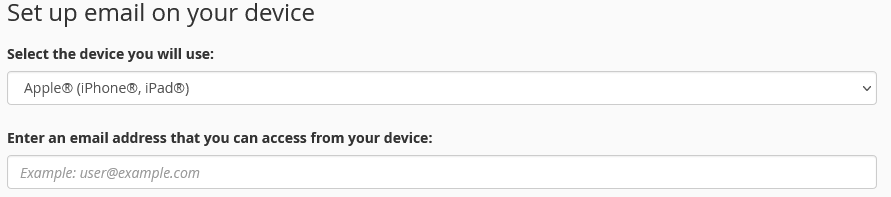
or by scrolling down the page and choosing “Configure Mail Client” to show you the settings: